
What or Who are District Tenants?
Switching between tenants
To navigate between tenants, click on the user initials in the top-right corner of the screen and select Switch to District Tenant.
The following dialog box is displayed. It has a drop-down list named District Tenant showing all the available tenants.
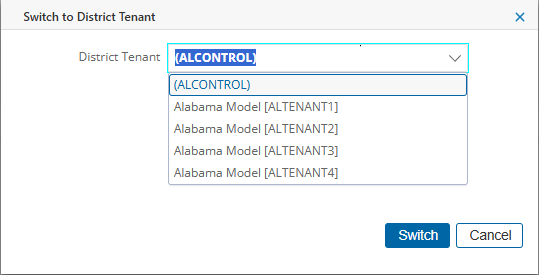
From the shown list, select the desired tenant and click Switch button. You would be logged into that database.
The database name is displayed in the header of the application window, beside the user profile icon

The database name is displayed in read-only mode and does not respond to any click action.
The list of ‘available tenants’ is displayed based on the security permissions associated with your login account.
Switching from a District Tenant to a Controller
To navigate from a District Tenant to a Controller, click on the user initials in the top-right corner of the screen and select Switch to Controller.
The screen refreshes and the header of the application window now displays the Controller name.

The controller’s name is displayed in read-only mode and does not respond to any click action.
Sync Reports to District Tenants
-
Go to Reporting, select Standard Reports.
-
From the navigation list, click and open any reports.
-
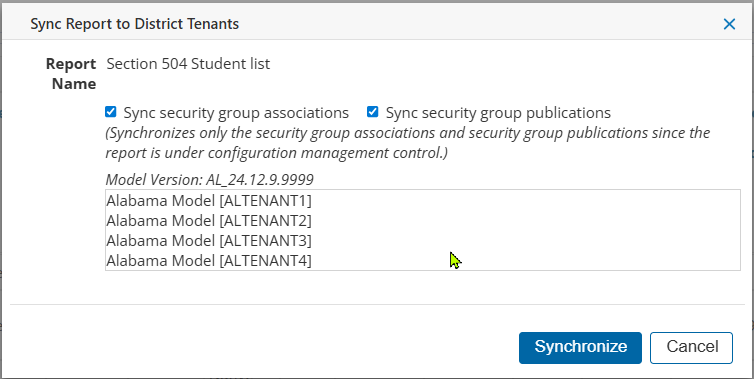
The following dialog box opens. Click Synchronize.
-
-
The Synchronization runs in the background and then following message is displayed in the dialog box.
Sync Security Group setting:
-
Group Associations is selected
-
Group Publications is selected
-
Group Associations is not selected
-
Group Publications is not selected
Selecting or Merging Tenants for Reporting
-
Go to Reporting, select Standard Reports
-
From the navigation list, click and open any reports.
-
-
In the top-right corner, click the drop-down list Select District Tenant.
-
Select the option Select/Merge Multiple District Tenants, a dialog box with the same name will open.
-
Validate the Report Name in the dialog box.
-
-
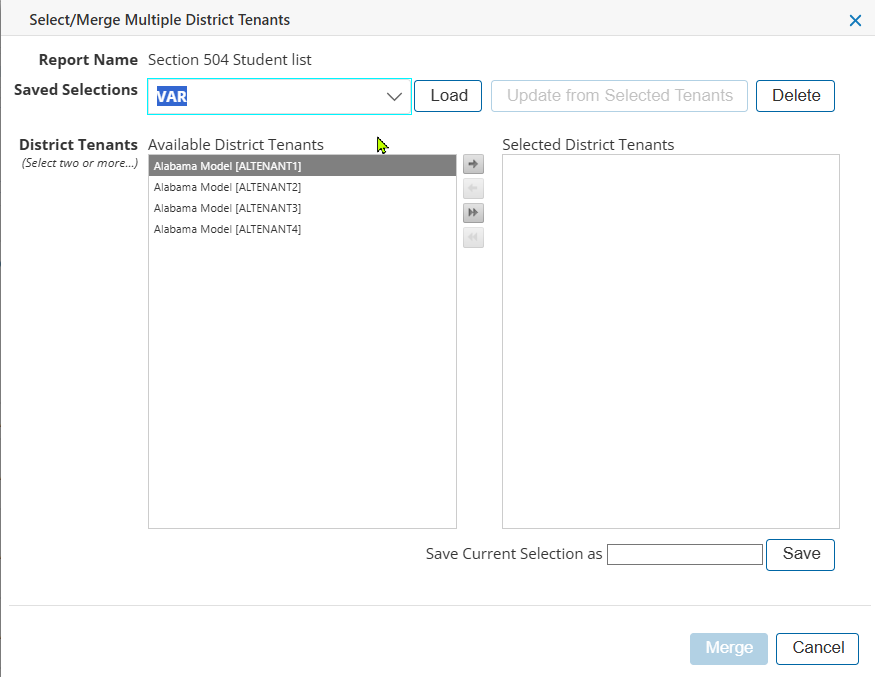
The field District Tenants shows two scrollable lists: Available District Tenants and Selected District Tenants.
-
Use the selection buttons ➡️ ⏩ ⏪ ⬅️ to move the desired District Tenants, to move items from the Available District Tenants list to the Selected District Tenants list.
-
If have selected and moved two or more District Tenants, you can save and give name to the Current selector.
-
-
When the dialog box loads, the Selected District Tenants list might be blank or empty.
-
Once there are two or more District Tenants names moved to the Selected District Tenants list, it can be saved by giving name to the Save Current Selection as field.
-
The same name will now appear in the Saved Selection drop-down list.
Using a Saved Selection
-
Go to Reporting, select Standard Reports
-
From the navigation list, click and open any reports.
-
-
In the top-right corner, click the drop-down list Select District Tenant.
-
Select the option Select/Merge Multiple District Tenants, a dialog box with the same name will open.
-
Validate the Report Name in the dialog box.
-
-
Use the drop-down for the field Saved Selections to make a selection. Click Load.
Updating a saved selection
-
Go to Reporting, select Standard Reports
-
From the navigation list, click and open any reports.
-
-
In the top-right corner, click the drop-down list Select District Tenant.
-
Select the option Select/Merge Multiple District Tenants, a dialog box with the same name will open.
-
Use the drop-down for the field Saved Selections to make a selection.
-
Use the selection buttons ➡️ ⏩ ⏪ ⬅️ to move the desired District Tenants, to move items between the Available District Tenants list to the Selected District Tenants list.
-
Once the configuration of the Saved Selection is changed, click Update from Selected Tenants.
Deleting a saved selection
-
Go to Reporting, select Standard Reports
-
From the navigation list, click and open any reports.
-
-
In the top-right corner, click the drop-down list Select District Tenant.
-
Select the option Select/Merge Multiple District Tenants, a dialog box with the same name will open.
-
Use the drop-down for the field Saved Selections to make a selection.
-
Click Delete.
The deletion process is irreversible. Also, there is no confirmation sought before completing the selection.